6 Sharing your work
When we talk about publishing Quarto documents, we usually mean making the rendered documents available to others via the web. In this chapter, you’ll learn the basics of Quarto’s built-in tools for publishing your content. For more details on specific providers and other ways to share documents, see Section 14.9.
6.1 Publishing to the web
The quickest way to publish a single document is via the quarto publish command, providing the document filename as an argument:
Terminal
quarto publish document.qmdThe command will prompt you to select a Provider:
? Provider:
❯ Posit Connect Cloud
  GitHub Pages
  Posit Connect
  Netlify
  Confluence
  Hugging Face Spaces
You’ll learn a bit more about the providers later in this chapter, but let’s use Posit Connect Cloud for illustration.
Posit Connect Cloud has a free tier with unlimited static documents. To follow along, you’ll need to Sign Up for an account first.
Quarto will prompt you to authorize your account when you select a Provider for the first time. This looks different for each provider, but for Posit Connect Cloud, you’ll be asked to authorize your account via your default internet browser:
? Provider: › Posit Connect Cloud
? Authorize (Y/n) ›
❯ In order to publish to Posit Connect Cloud you need to authorize your account.
  Please be sure you are logged into the correct Posit Connect Cloud account in your
  default web browser, then press Enter or 'Y' to authorize.
Once authorized, Quarto will render your document one more time, before sending it (and all its required resources) to the Provider. Once done, Quarto will give you a URL to view your published content, as shown in Figure 6.1.
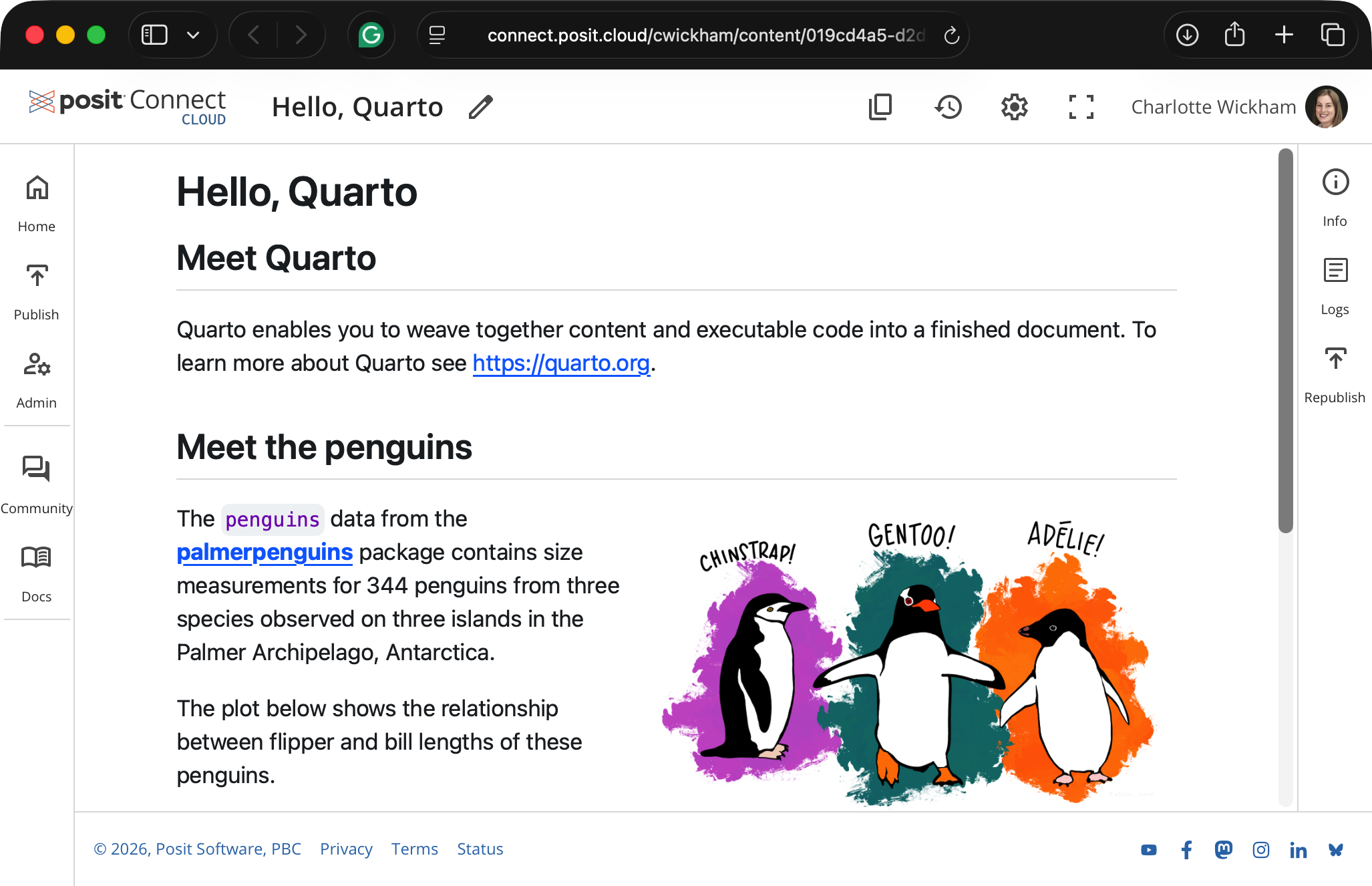
The URL Quarto returns is for managing your content, not for sharing. To find your shareable URL, navigate to Settings > URL, as shown in Figure 6.2.
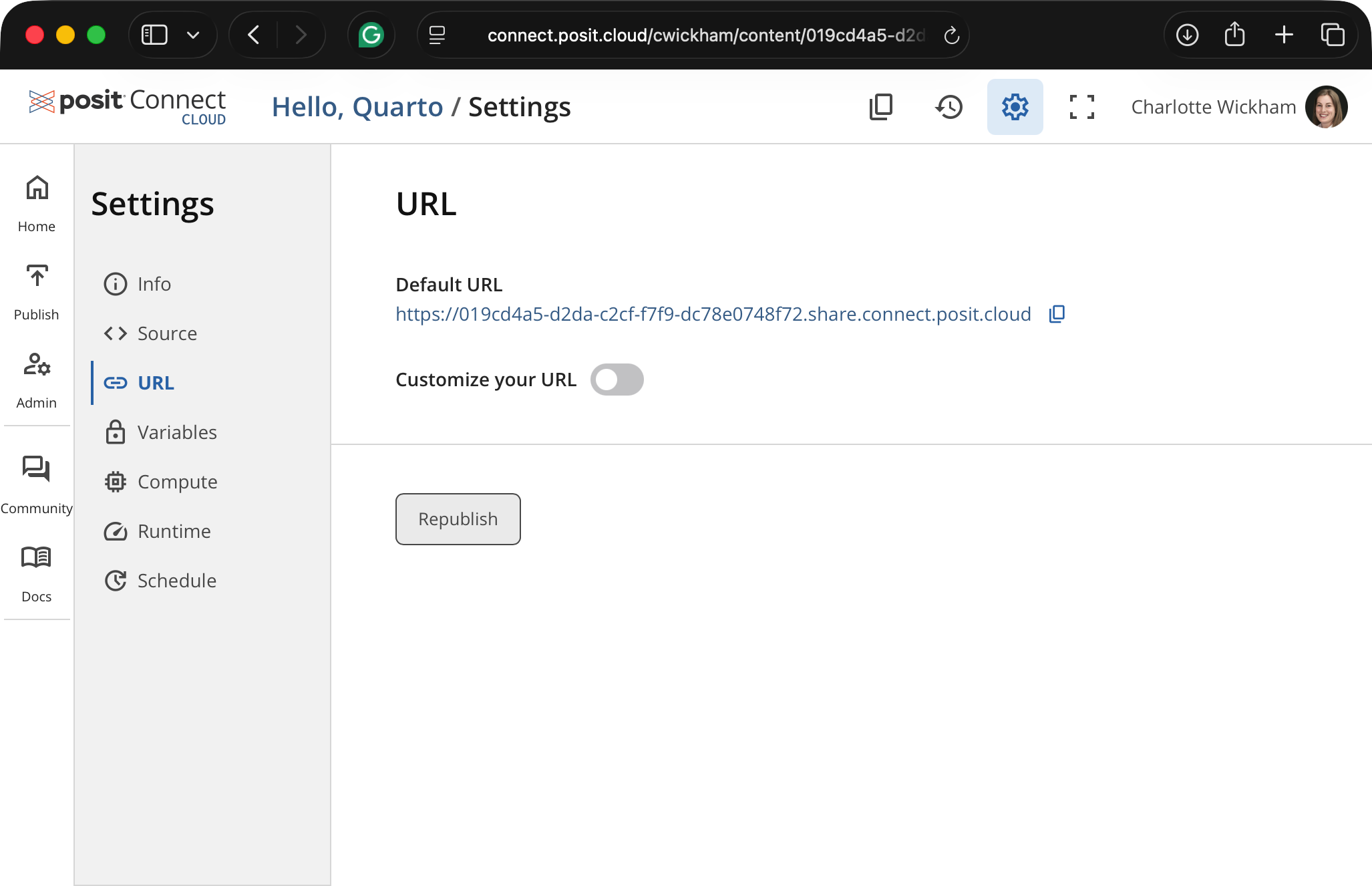
Shareable URLs end in .share.connect.posit.cloud. By default, URLs use an auto-generated identifier, but you can customize them to something memorable like cwickham-document.share.connect.posit.cloud. Share the URL and anyone can view your rendered content.
6.2 The publishing process
The quarto publish command relies on local rendering—that is, your Quarto documents are rendered locally on your computer using your local installation of the Quarto CLI. Only the output files are then transferred to the publishing provider. In Figure 6.3 we illustrate this as two separate steps—render then publish— but they both occur when you run the quarto publish command.
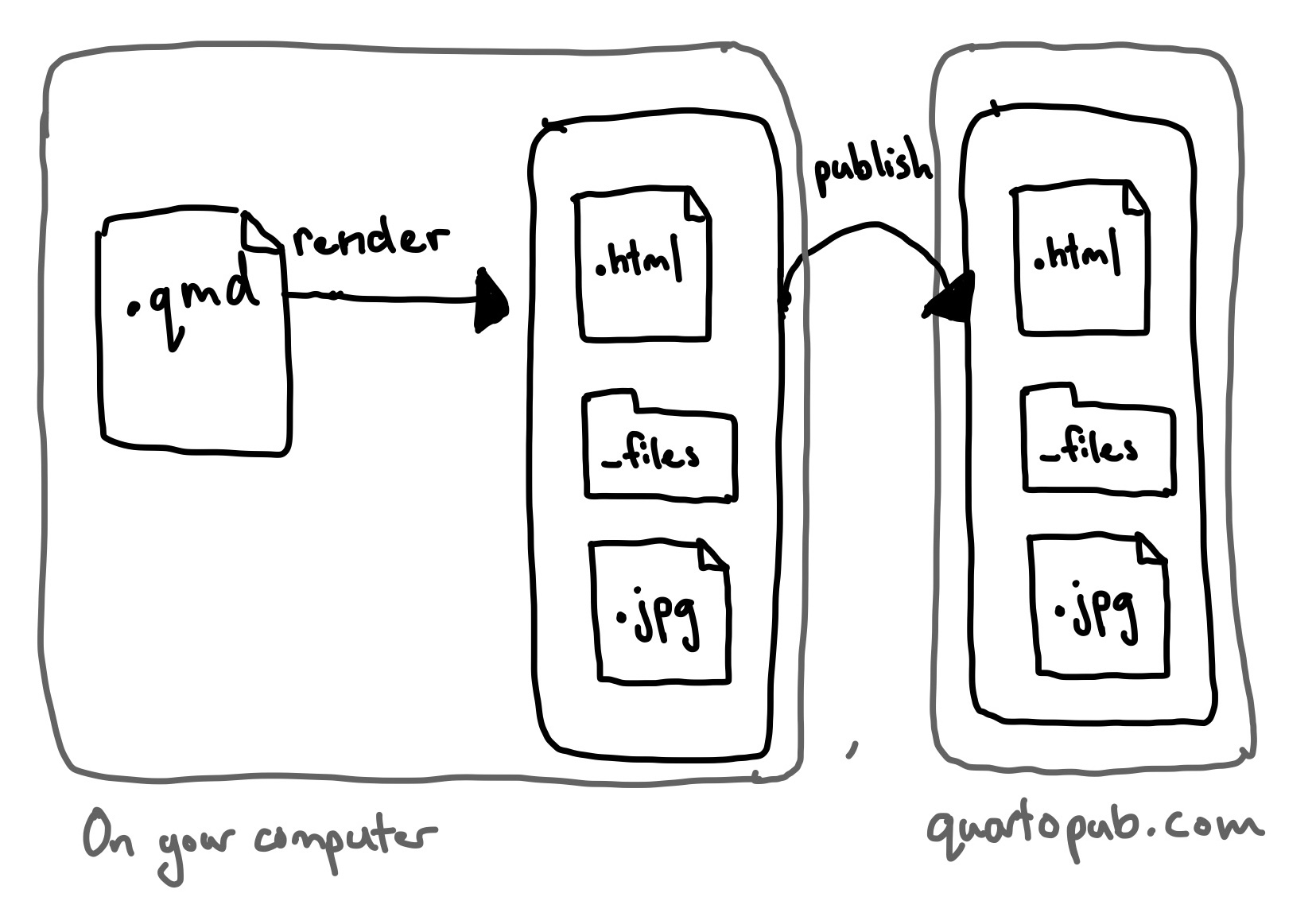
quarto publish process. Input files are rendered locally, then the output files and their dependencies are uploaded to the publishing provider.
Quarto generates a single self-contained output file for some output formats, like PDF or Word documents. This single output file is the only thing that needs to be transferred to the provider to share it with others. However, for some formats, notably HTML, Quarto generates a collection of files, which might depend on other local files like images. All of these files and their dependencies need to be transferred to the provider to publish the content successfully. The advantage of quarto publish is that Quarto identifies all these required files for you.
6.3 Updating published documents
When you use quarto publish details about what and where you publish are stored in a file called _publish.yml:
_publish.yml
- source: document.qmd
  posit-connect-cloud:
    - id: 019cd4a5-d2da-c2cf-f7f9-dc78e0748f72
      url: 'https://connect.posit.cloud/cwickham/content/019cd4a5-d2da-c2cf-f7f9-dc78e0748f72'
This means when you run quarto publish on a document or project a second time, you’ll be given the option of using the same details—in effect updating your published content.
The details in _publish.yml aren’t sensitive (there are no authentication details) so you can check it into version control.
6.4 Sharing document source
A huge advantage of Quarto’s plain text format is that you can share snippets that others can copy and paste. You’ve seen plenty of examples in this book already, but to be concrete here’s another one:
---
format:
  html:
    toc: false
---

## Some code

```{r}
1 + 1
```
It includes header YAML, some markdown and an executable R cell. You could copy and paste that example, save it as a .qmd and it would be ready to render.
To include this kind of snippet in your own Quarto documents, use quadruple backticks to surround the snippet, and double any curly braces on executable code cells. As an illustration, the above example was created with:
````
---
format:
  html:
    toc: false
---

## Some code

```{{r}}
1 + 1
```

````
The same quadruple backtick approach works in many other venues that use Markdown like GitHub Issues, GitHub Discussions and the Posit Community Forum. You generally don’t need to double curly braces in these venues because they won’t attempt to execute any code.
6.5 Next steps
In this chapter you’ve seen that sharing your rendered Quarto documents is as simple as running quarto publish. This model of publishing relies on local rendering, but more complicated models like continuous integration exist and you’ll learn about them in later chapters.
There’s nothing special about Quarto source documents, or stand-alone outputs like PDFs, so you can share them in your usual ways.
When you’re ready to publish projects like websites or books, or want to explore other publishing providers like GitHub Pages or Netlify, see Chapter 14.